How to Answer Calls on Apple Watch: A Comprehensive Guide
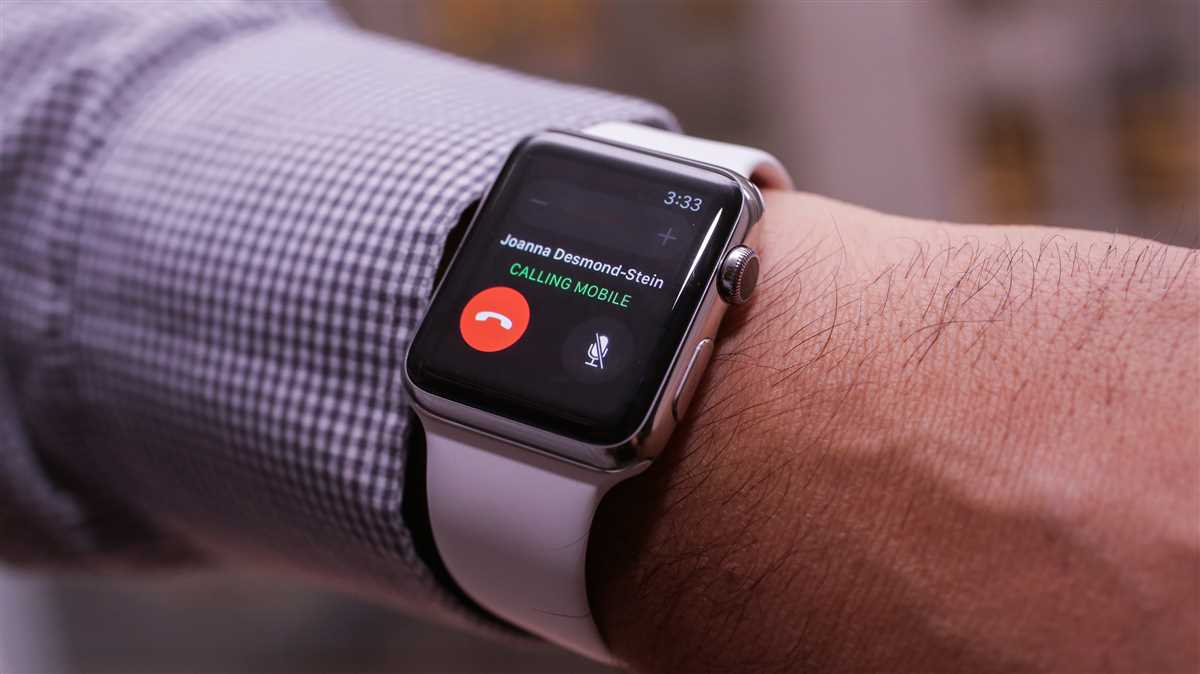
Apple Watch has become more than just a sleek and stylish accessory for your wrist. With its advanced features and capabilities, it has become an integral part of our daily lives. One of the functionalities that users often wonder about is whether they can answer calls directly on their Apple Watch.
The good news is that yes, you can indeed answer calls on your Apple Watch! This feature allows you to take incoming calls without having to reach for your iPhone. With just a tap on your wrist, you can quickly and conveniently answer calls, making your Apple Watch even more indispensable.
Whether you’re out on a run, in the middle of a meeting, or simply don’t want to dig through your bag to find your iPhone, answering calls on your Apple Watch provides a seamless and convenient experience. With built-in speakers and a microphone, you can have clear conversations right from your wrist, without missing a beat.
Stay connected and stay productive with the ability to answer calls on your Apple Watch.
Can you answer calls on Apple Watch?
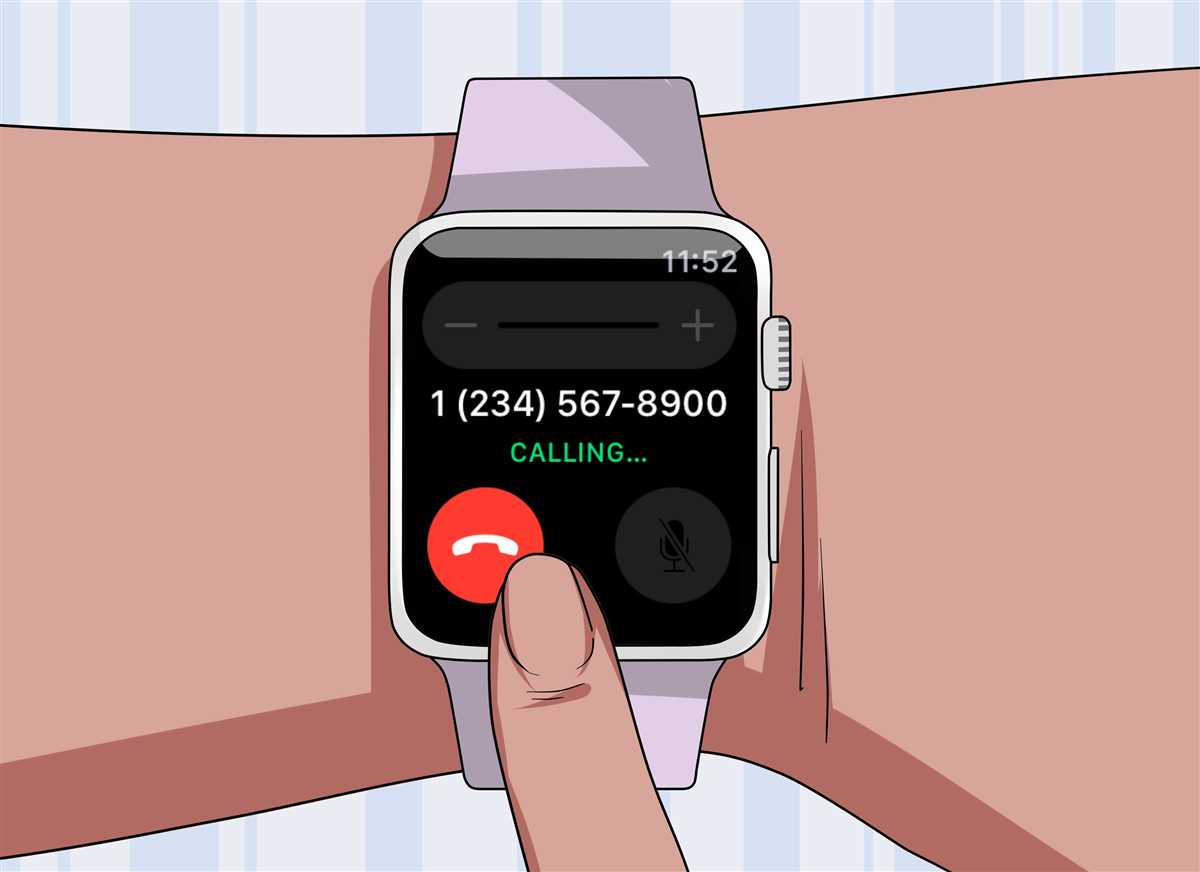
Yes, you can answer calls on your Apple Watch, making it a convenient device for handling phone calls without having to take out your iPhone. The Apple Watch allows you to answer incoming calls directly from your wrist, saving you time and making communication more accessible.
To answer a call on your Apple Watch, you can simply tap the “Answer” button that appears on the watch face when a call comes in. The call will then be routed through the watch’s built-in speaker and microphone, allowing you to converse with the caller without needing to use your iPhone.
When answering a call on your Apple Watch, you also have the option to transfer the call to your iPhone. This can be useful if you’re in a situation where you prefer to continue the conversation on your iPhone, such as if you need to switch to a longer or private conversation.
In addition to answering calls, you can also make calls directly from your Apple Watch. Using Siri or the Phone app on the watch, you can dial a number or use your synced contacts to initiate calls. This feature is particularly useful when your iPhone is not readily accessible or if you prefer the convenience of making calls directly from your wrist.
How to Answer Calls on Apple Watch
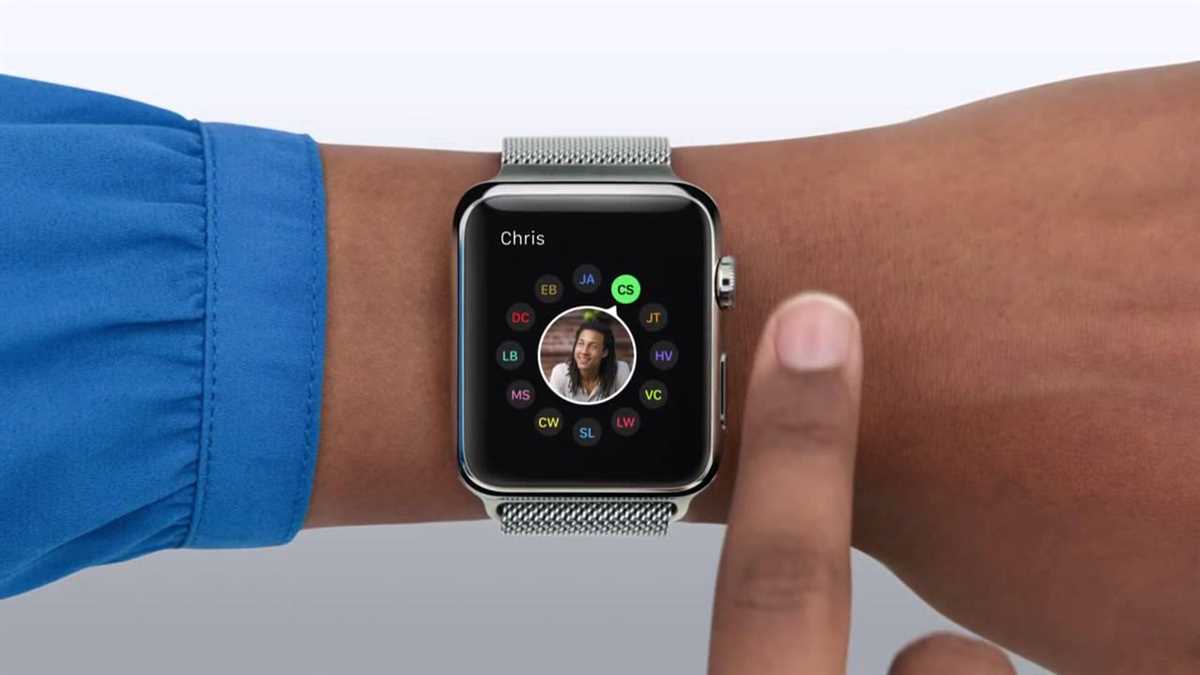
Answering calls on your Apple Watch is a convenient feature that allows you to take and make calls without having to reach for your iPhone. With just a few taps, you can quickly answer calls and hold conversations directly from your wrist.
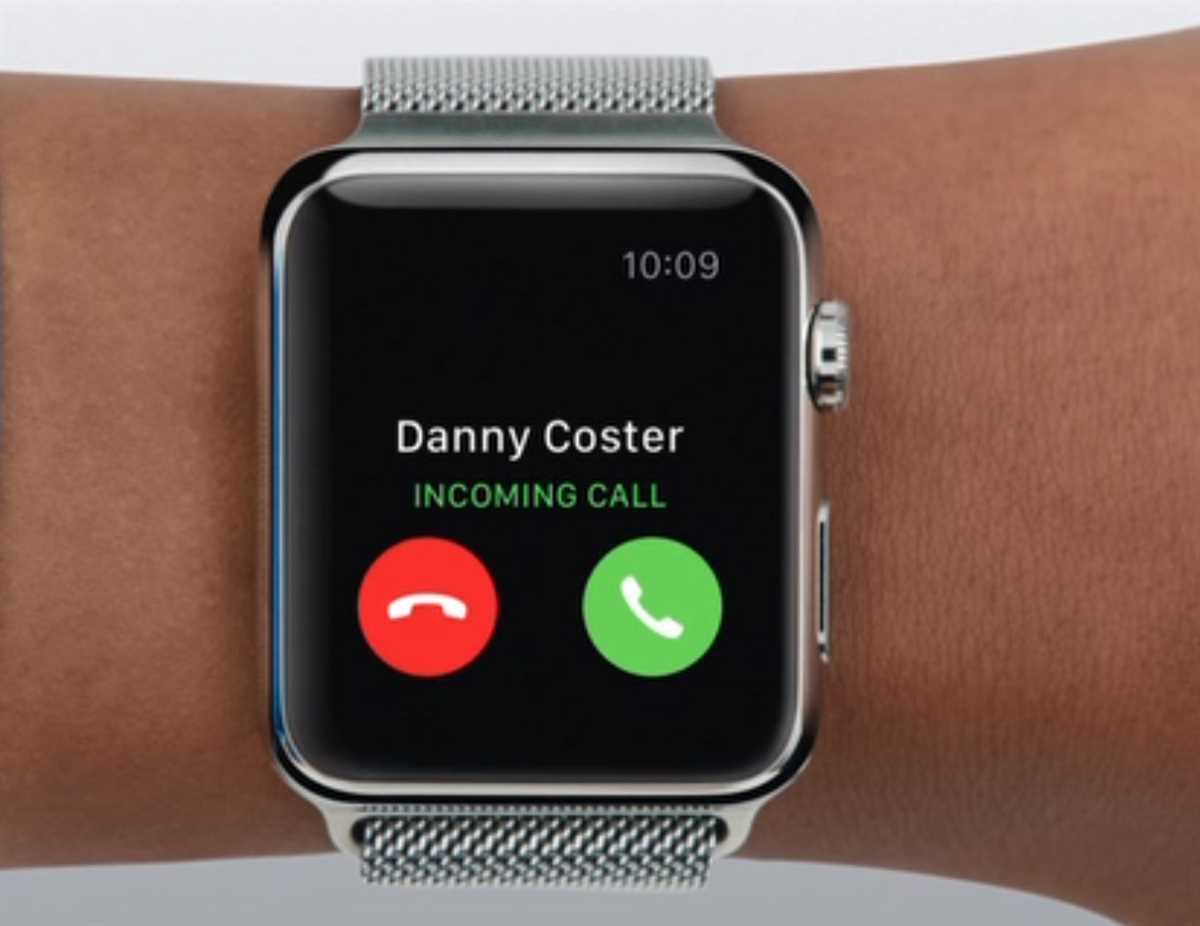
To answer a call on your Apple Watch, there are a couple of different methods you can use. The most basic way is to simply tap the green phone icon that appears on the screen when a call comes in. This will automatically answer the call and allow you to start speaking.
Alternatively, if you have connected a Bluetooth headset to your Apple Watch, you can answer calls using the headset. The audio will be directed to the headset, and you can speak and listen through it. Simply tap the answer button on your headset when a call comes in to answer it.
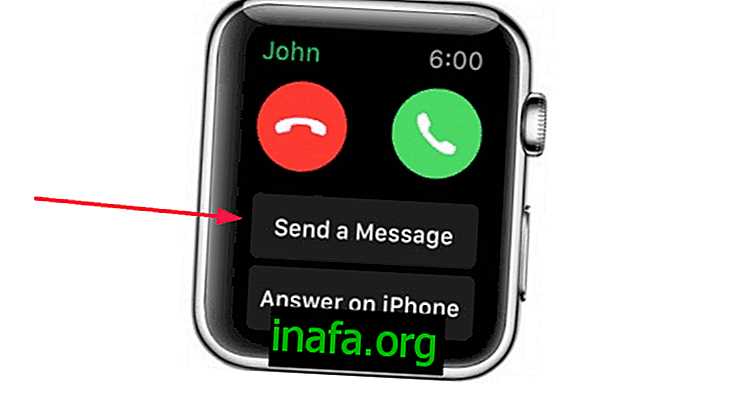
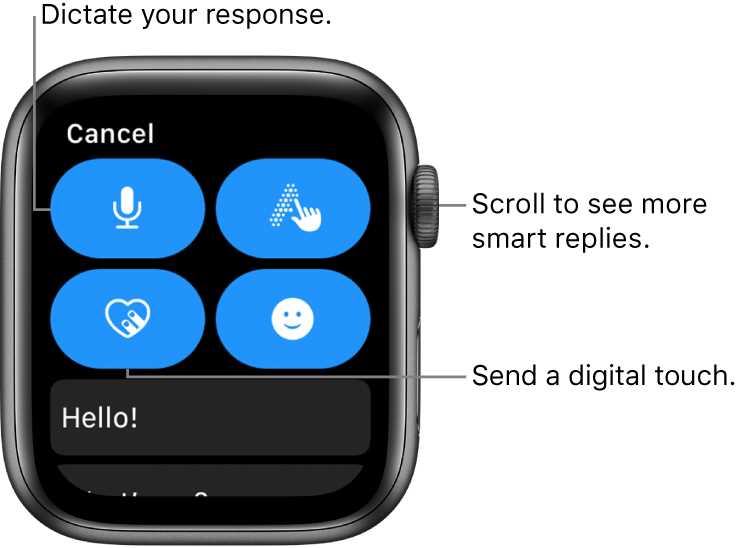
If you’re unable to answer a call right away, you can also use the built-in feature on your Apple Watch called “Quick Decline.” This allows you to quickly decline a call without answering it by tapping the red phone icon on the screen. You can then choose to send a pre-written message, decline the call, or simply ignore it.
Overall, answering calls on your Apple Watch is a straightforward process that can be done with a single tap. Whether you prefer to answer calls directly on your watch or through a Bluetooth headset, you’ll have the flexibility to handle incoming calls conveniently from your wrist.
Steps to Answer Phone Calls on Apple Watch
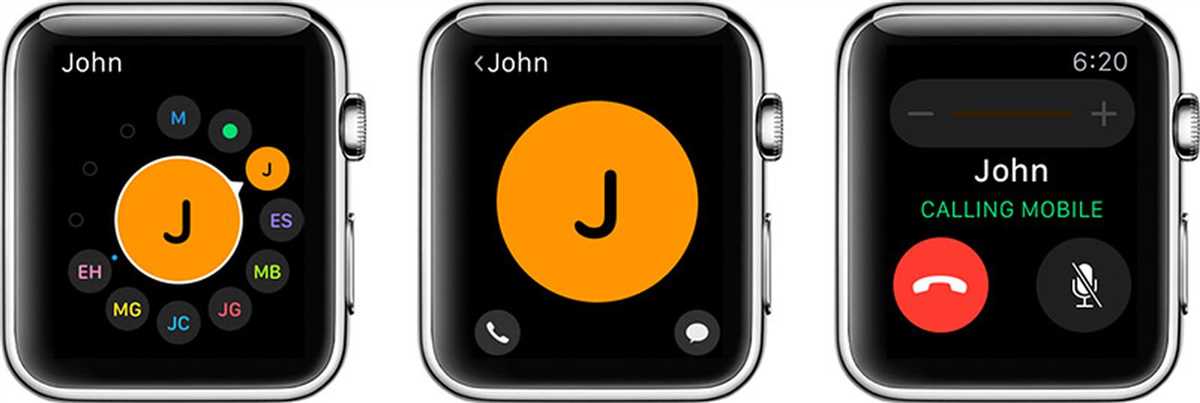
Apple Watch allows you to answer phone calls directly from your wrist, providing a convenient and accessible way to stay connected. Here are the steps to answer phone calls on your Apple Watch:
- Receive the call: When your Apple Watch receives an incoming call, you will feel a gentle vibration on your wrist and hear a ringtone or vibration, depending on your settings.
- View the caller: To see who is calling, simply raise your wrist or tap the screen. You will see the caller’s name or number displayed on your Apple Watch.
- Answer the call: To answer the call, swipe right on the screen or press the green answer button. You can also use the Digital Crown to scroll and select the answer option.
- Communicate: Once the call has been answered, you can speak directly into your Apple Watch’s built-in microphone and listen through its speaker. The call audio can be transferred to a Bluetooth headset or your iPhone if you prefer.
- End the call: To end the call, simply swipe left on the screen or press the red hang-up button. You can also use the Digital Crown to scroll and select the end call option.
With these simple steps, you can easily answer and manage phone calls directly on your Apple Watch, keeping you connected and accessible at all times.
Tips for answering calls on Apple Watch
Answering calls on your Apple Watch is a convenient way to stay connected, especially when your iPhone is not within reach. Here are some helpful tips to make the most of this feature:
1. Accept or Decline a Call: When a call comes in, you can quickly accept it by tapping the green phone icon or decline it by tapping the red phone icon. If you wish to silence the incoming call, you can cover your Apple Watch’s display with your hand or press the Digital Crown.
2. Use the Speaker or Bluetooth Headset: Apple Watch allows you to switch between using the built-in speaker or a connected Bluetooth headset during calls. To switch to the speaker, tap the green audio icon during the call. To switch to a Bluetooth headset, tap the AirPlay icon and select your headset from the options.
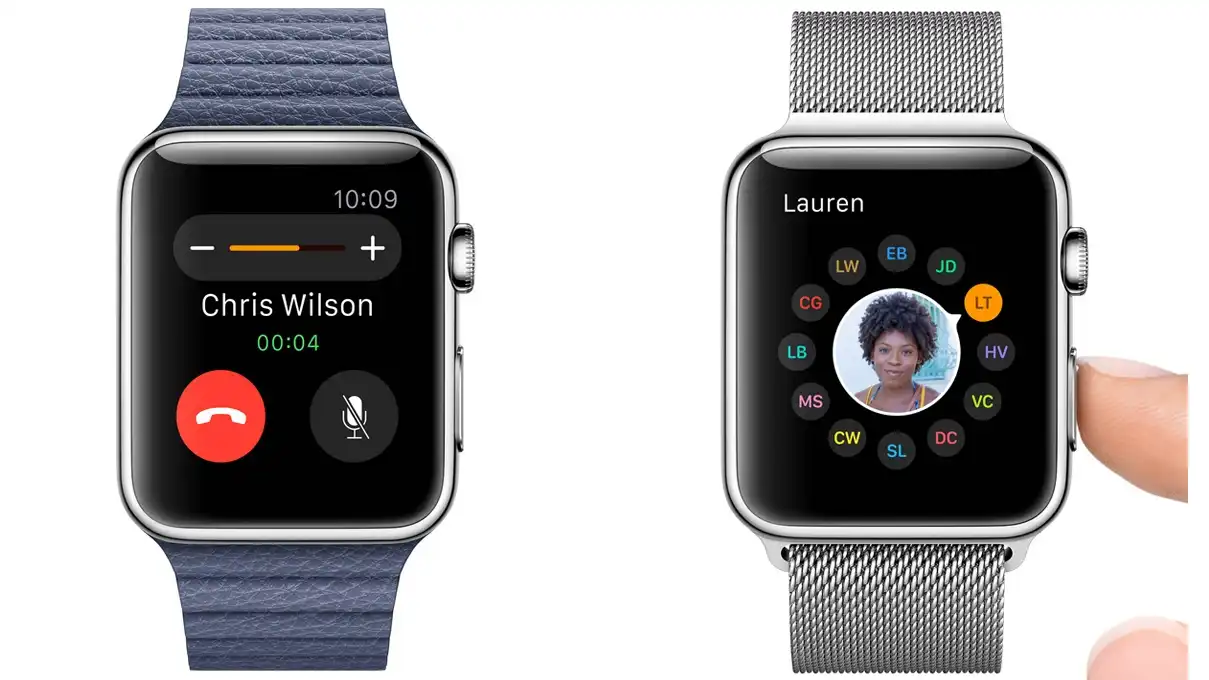
3. Adjust Call Volume: If you find the call volume too low or too loud, you can easily adjust it on your Apple Watch. During the call, simply turn the Digital Crown to increase or decrease the volume. Additionally, you can also adjust the volume on your Bluetooth headset, if connected.
4. Access Call Controls: During an ongoing call, you have quick access to various call controls on your Apple Watch. These controls include the option to mute the call, end the call, access the keypad, transfer the call to your iPhone, or switch to FaceTime Audio if both you and the recipient have Apple devices.
5. Enable Call Forwarding: Apple Watch allows you to enable call forwarding, so you can receive your iPhone calls on your Watch. To enable this feature, open the Apple Watch app on your iPhone, go to Phone, and toggle on “Call Forwarding”. This can be especially useful in situations where you want to leave your iPhone behind but still stay reachable.
With these tips in mind, you can confidently answer calls on your Apple Watch and enjoy the convenience of staying connected wherever you are.
Troubleshooting problems with answering calls on Apple Watch
If you are experiencing issues with answering calls on your Apple Watch, there are several troubleshooting steps you can take to resolve the problem. These steps will help diagnose and fix any software-related issues that may be preventing you from answering calls on your watch.
1. Ensure your Apple Watch is connected to your iPhone
Make sure that your Apple Watch is connected to your iPhone and that both devices are within range of each other. Check the Bluetooth settings on both devices to ensure they are properly paired. If the connection is weak, try moving closer to your iPhone or restarting both devices.
2. Check your call forwarding settings
On your iPhone, go to the “Phone” settings and make sure that call forwarding is disabled. If call forwarding is enabled, it may be redirecting incoming calls to another number or device, preventing your Apple Watch from answering the call. Disable call forwarding and test if you can answer calls on your watch.
3. Restart your Apple Watch
A simple restart can often resolve software glitches. To restart your Apple Watch, press and hold the side button until the power off slider appears. Slide it to power off, then press and hold the side button again until the Apple logo appears and the watch restarts. Once it turns back on, try answering a call to see if the issue is resolved.
4. Update your Apple Watch and iPhone software
Outdated software can sometimes cause compatibility issues with answering calls on your Apple Watch. Make sure both your iPhone and Apple Watch are running the latest version of their respective software. On your iPhone, go to “Settings” > “General” > “Software Update” and check for any available updates. On your Apple Watch, go to the “Watch” app on your iPhone, then navigate to “General” > “Software Update” to check for updates.
5. Reset network settings
If you are still encountering issues with answering calls on your Apple Watch, try resetting the network settings on your iPhone. This can help resolve any network-related issues that may be affecting the connection between your devices. To reset network settings, go to “Settings” > “General” > “Reset” on your iPhone, then choose “Reset Network Settings”. Note that this will remove all saved Wi-Fi passwords, so make sure you have them handy.
By following these troubleshooting steps, you should be able to resolve any issues you are experiencing with answering calls on your Apple Watch. If the problem persists, you may want to contact Apple Support for further assistance.
Alternatives to answering calls on Apple Watch
While Apple Watch does offer the convenience of answering calls directly from your wrist, there are also alternative methods for handling phone calls without relying solely on your smartwatch. Here are a few alternatives to consider:
- Using Bluetooth headphones or earbuds: By connecting a pair of Bluetooth headphones or earbuds to your smartphone, you can answer calls by simply pressing a button on the headphones. This allows for hands-free calling while keeping your phone in your pocket or bag.
- Using a Bluetooth headset: Similar to Bluetooth headphones, a Bluetooth headset can be connected to your smartphone for answering calls. These headsets often feature a built-in microphone, making it easy to have conversations without holding your phone.
- Using a smart speaker: If you have a smart speaker, such as an Amazon Echo or Google Home, you can link it to your smartphone and make and receive calls using voice commands. This allows for hands-free calling from anywhere in your home.
- Using a hands-free car system: Many modern cars have built-in hands-free calling systems that allow you to answer calls using voice commands or steering wheel controls. This is a convenient and safe way to handle phone calls while driving.
In conclusion, while Apple Watch offers the convenience of answering calls directly from your wrist, there are several alternative methods available for handling phone calls. Whether it’s using Bluetooth headphones, a Bluetooth headset, a smart speaker, or a hands-free car system, you can find a solution that suits your needs and preferences.